How Hellcase Withdrawal Works: Skins vs. Money
Hellcase works within Steam's official trading guidelines. Your skins will be withdrawn by accepting trade offers from Hellcase's bots. Your account will need to be configured in the following manner to withdraw your skins successfully:
- You have a valid Steam account that you've linked to Hellcase.
- Your Steam inventory is set to public.
- You've provided a valid trade URL.
- Steam Guard Mobile Authenticator is installed on your device.
There is a minimum amount required to withdraw, based on the value of the items being withdrawn and whether they can be traded. If the items you're trying to withdraw are held in Steam's trade hold system, you won't be able to withdraw them until the restriction time period has expired. The amount of time it takes for trades to process is usually instant once you accept the trade. There are delays due to heavy server loads, Steam API downtime, and/or low amounts of an item available in your inventory.
Withdrawal Process for Skins from Hellcase: Step-by-Step Guide
- Log in to Hellcase using your Steam account. Open your Steam Profile Settings and make sure your inventory is set to public. If your inventory is private, you cannot receive any trade offers.
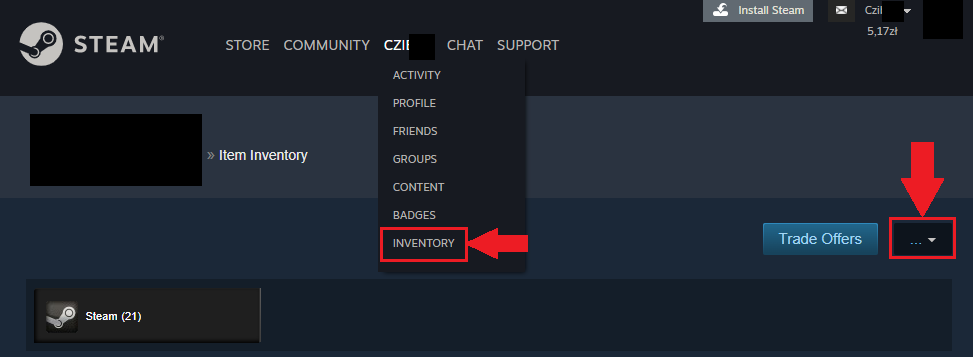
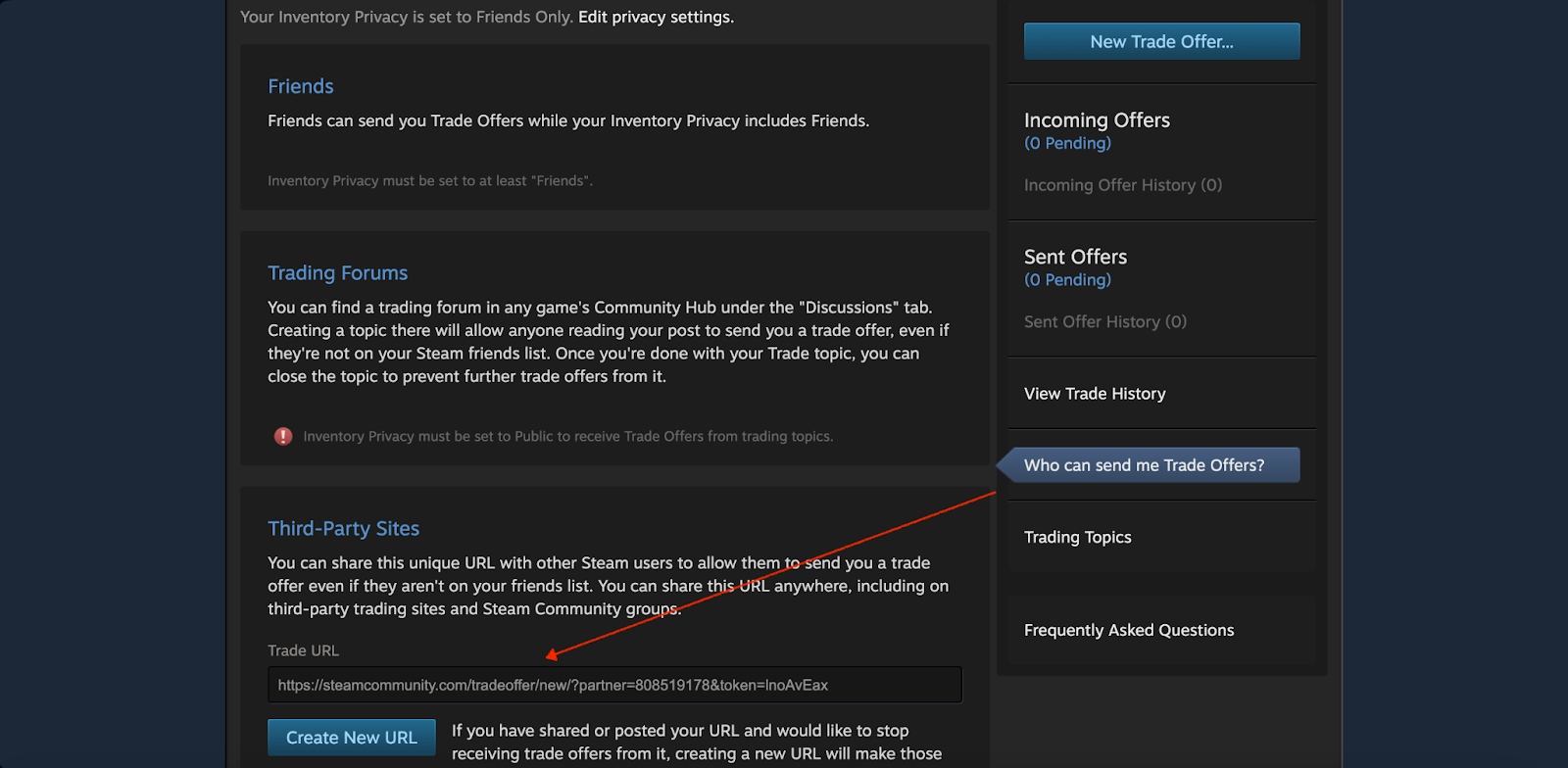
- Go to the "Trade URL" section of your Steam Profile Settings. Copy your Trade URL and paste it into your Hellcase Account Settings. Save your settings.
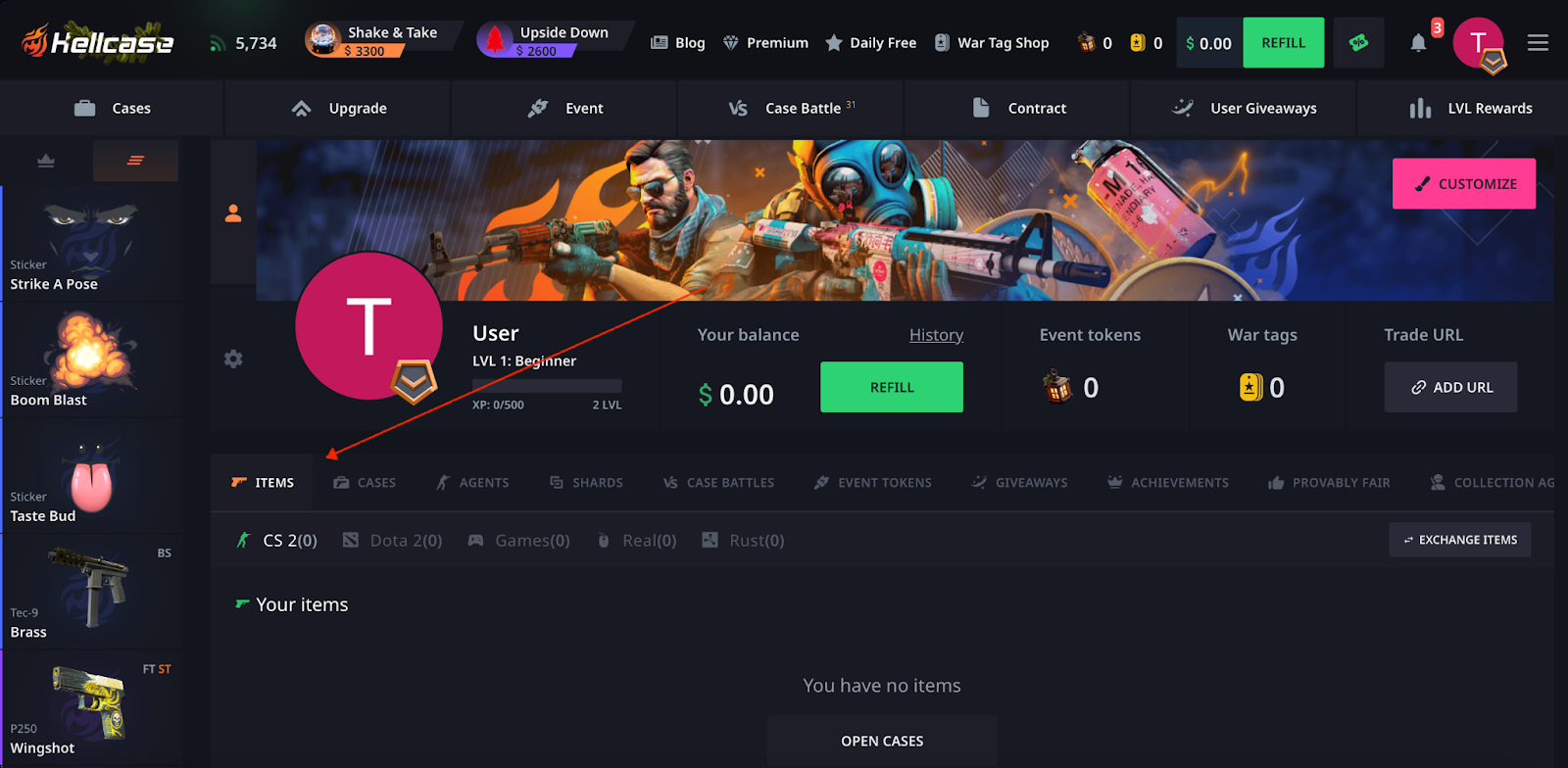
- Navigate to the "My Items" tab in Hellcase. Browse your available items and click on the item you'd like to withdraw. Check the item value and the status of the item (i.e., whether it can be traded).
- Click on the "Withdraw" button, and Hellcase will begin the withdrawal process. This will initiate a trade offer to your Steam account from Hellcase's bot. This may take anywhere from a few seconds to a few minutes, depending on how busy Hellcase's servers are and how fast the Steam API responds.
- When the trade is initiated, you'll see a notification in your Steam account asking you to confirm the trade. Go to the "Trade Offers" tab in your Steam account and look for the trade from Hellcase. Review the item details and accept the trade.
- Once you've confirmed the trade through Steam Guard on your mobile device, the skin should be transferred to your Steam Inventory in just a few minutes.
How to Withdraw Money from Hellcase Using ShadowPay
Hellcase uses ShadowPay for cash withdrawals. Here are the steps to withdraw your Hellcase funds into real money:
- Create a ShadowPay Account: Visit the ShadowPay website and register or log in using the same Steam account that you linked to Hellcase. Link your Hellcase account to your ShadowPay account so that you can transfer funds between the two accounts. Mismatching accounts may result in failed transactions.
- Transfer Funds from Hellcase to ShadowPay: Go to your Hellcase Profile and click on the "Withdraw" button. Select the amount of funds you wish to transfer. Choose ShadowPay as the recipient of the funds. ShadowPay charges a small fee of around 3%. Daily withdrawal limits apply based on the verification level of your ShadowPay account.
- Confirm the Transfer: Review the details of the transaction and confirm the amount you wish to withdraw and the fees associated with the transfer. Submit your request. Funds should show up in your ShadowPay account balance in a matter of minutes to hours.
- Select Payout Method: Log in to your ShadowPay account and go to the "Withdraw" section. Select a payout method from the list of options:
- Bank Transfer.
- PayPal.
- Cryptocurrency (e.g., Bitcoin, Ethereum, etc.).
- Bank Card (e.g., Visa, Mastercard).
Processing times and fees vary depending on the payout method you choose.
- Complete the Withdrawal: Enter the necessary payment details. Verify the information. Submit your request to withdraw funds, and ShadowPay will process the payment. The processing time varies depending on the payout method, but in most cases, it's instantaneous for options like cryptocurrencies and 3-5 business days for bank transfers.
Alternative Cash-Out Methods: After Skin Withdrawal
Once you've withdrawn your skins from Hellcase to your Steam inventory, there are many alternatives to convert those skins into real cash.
Third-Party Marketplace Sales
List your skins for sale on third-party marketplaces such as Skinport, DMarket, or CS.Money. They will allow you to list your skins, and either purchase them directly or connect you with other people interested in the skins. Skinport usually has higher selling prices compared to the Steam Market. DMarket accepts payment in many different ways, including bank cards and cryptocurrencies. On the other hand, CS.Money allows you to instantly trade your skins for their store credit or cash.
Join one of the CS2 trading forums or join a CS2 Discord community. Post your skins with an asking price. Trade with other verified community members. If you're trading large numbers of skins, use a middleman service. r/GlobalOffensiveTrade is a subreddit that maintains reputation systems for traders. Always check the buyer's credentials before you complete the trade.
Sell your skins directly on Steam's official marketplace. Your Steam Wallet will be credited the moment a sale is completed. However, Steam charges a 5% transaction fee and also a game-specific fee. When you add up both these fees, the total is usually around 13-15% of the sale price of your skins. You can't withdraw your Steam Wallet balance to your bank account or PayPal.
Direct P2P Trades
Find buyers by looking at social media groups or CS2 trading communities. Once you find a buyer, arrange a direct deal using safe payment methods. Verify the buyer's reputation through their feedback from the community. Trade your skins using the trade window in Steam. Ask the buyer to pay you via tracked payment methods like PayPal Goods and Services. Do not give the buyer your skins until you receive confirmation that you have been paid.
Cryptocurrency Instant-Cashout Services
Some skin trading platforms allow you to get paid in cryptocurrency instantly. Platforms like Buff163 and CSGOEmpire will allow you to instantly convert your skins to Bitcoin or Ethereum. The rate for conversion varies depending on how much demand there is for the skins you want to sell and the liquidity of the platform. The cryptocurrency will be sent to your digital wallet almost immediately. Then, you can transfer the cryptocurrency to an exchange and convert it to your desired fiat currency.
Important Trading Restrictions & Conditions
There are some things to consider about the withdrawal of skins and money from Hellcase.
Trade Locks
Newly purchased items from Steam may be restricted from trading for 7 days. Any new items you trade for also inherit the trade restriction period from either party. You won't be able to withdraw any items while they are still in a trade lock.
Different alternatives to withdrawing your skins will cost you different amounts of money. For example, ShadowPay will take approximately 3% of the funds you are transferring. Most third-party marketplaces charge between 5% and 15%. Additionally, as previously mentioned, Steam Market fees range from 13% to 15%. Be aware that most payment processors will take 2-4% on bank transfers and PayPal withdrawals. So, factor in all of these fees into your estimated withdrawal amount.
Fluctuations in Item Availability
Hellcase indicates whether an item is available based on its current stock level. As soon as there is a rapid increase in price for an item, it will automatically be removed from sale. Try refreshing your withdrawal page if you see your chosen item has become unavailable. Choose alternative items that are of similar value.
Account Bans
A Steam ban will completely restrict your ability to trade on Steam. A VAC ban will limit your ability to create trade offers for the affected game(s). If you have private inventory settings, you will not be able to accept trade offers. If you have disabled your Steam Guard Mobile Authenticator, you will have a 15-day trade lock on your account. Before trying to withdraw your skins, ensure that your account meets all of the requirements.
Variable Processing Times
The time it takes to withdraw your skins from Hellcase can depend on several factors outside of your control. During Steam API server down times for maintenance, trade offers will be delayed. During high-traffic times, Steam will take longer to generate trade offers. When bot inventories are low and need to be restocked, your ability to withdraw will be limited. Payment processor queues will delay the transfer of your money during weekends and holidays. Plan your withdrawals during slower periods to minimize processing delays.
Hellcase Withdrawal Issues: How to Resolve Them
Common withdrawal issues include:
Delayed/No Trade Offer Received
Steam API delays result in missing trade offers. Wait 10-15 minutes before trying again. Check your Steam notifications and trade history. Confirm that your trade URL is valid and corresponds with the linked Steam Account. Log out of Hellcase, then try logging back in and resubmit your withdrawal request. If you do not receive a trade offer after an hour, contact Hellcase Support.
Item Shows As Unavailable
This happens due to stock shortages, when demand exceeds supply, or when an item is automatically removed because of a price change. Find another skin that has a similar value. Check during off-peak hours when Hellcase stock is restocked. Look for items in your Hellcase inventory that are marked as 'in stock'. Use the availability status filter on the withdrawal page to see all available options.
Private Inventory Error
To process trades through Hellcase, your Steam inventory must be set to public. Go to the privacy settings tab within Steam. Change your inventory privacy setting to 'public' and save the changes. Give Steam at least 5 minutes to update your privacy settings. Once you have confirmed that your privacy setting has been changed, try making a withdrawal request through Hellcase.
Missing Mobile Confirmation
Steam Guard mobile authenticator confirmations expire after several minutes. Immediately open the Steam mobile app after you request a withdrawal. Look for the "confirmations" tab and confirm any pending trades. Make sure your phone is enabled to receive push notifications so that you can get instant alerts and also stay near your phone while making a withdrawal attempt. If you do not see any confirmations, try reinstalling Steam Guard.
Delayed Transfer From ShadowPay
Reviews may take longer for first-time users or large transfers. Payment provider queues extend processing times when many people are making large transfers. To reduce review time, verify your ShadowPay account. Start by checking your email to see if there are any requests to verify your account. Alternatively, contact ShadowPay support if your transfer has been pending longer than 24 hours. Providing transaction IDs will help speed up the process.
Error/Invalid Trade Url
Invalid trade URLs cause the Hellcase bot systems not to send you a trade offer. Every time you generate a new trade URL, Steam updates it; old URLs become inactive immediately. Copy your current trade URL and include all parameters in the trade URL. Remove any extra spaces or characters from the URL. Update the trade URL in Hellcase settings prior to attempting to withdraw.
Account Limitation Messages
Temporary withdrawal restrictions apply to new Hellcase accounts. Follow the account verification instructions to link your Steam properly. Make qualifying deposits as required by the platform's terms, then wait until your probation period expires. View your account status on the settings page, and if nothing has changed, contact support to clarify any account-specific withdrawal restrictions.
Tips For Safe And Quick Hellcase Withdrawals
Turn On Two-Factor Authentication
Activate Steam Guard mobile authenticator before attempting a withdrawal. Connect your phone number to your Steam account and turn on email confirmations for all trades. Two-factor authentication prevents unauthorized access. The trade holds will disappear after 7 days of continuous usage of Steam Guard, but don't disable your authenticator once it's activated.
Always Access Official Websites
Only access Hellcase using the official website. Phishing sites imitate the official interface in order to steal login credentials. Check your browser URL bar to ensure you're visiting the correct address and bookmark the official site to prevent typos. Never click on withdrawal links sent to you via unsolicited emails. Scam sites ask for your Steam credentials on fake login pages to gain access to your skins and funds.
Research cash-out platforms before you transfer funds. Read user reviews about the platform on independent sites such as Trustpilot and verify that the platform has active support channels. Additionally, check community forums for reports of scams. Well-established platforms such as ShadowPay, Skinport, and DMarket have strong reputations. Avoid new or unknown services offering unrealistic rates.
Withdraw During Off-Peak Hours
Steam Api performance improves during low-traffic hours. Early morning hours (2-6 am EST) experience less server traffic. Weekday afternoon hours typically experience lower server traffic compared to evening hours. Avoid major CS2 update release times. Schedule large withdrawals for midweek days.
Choose High-Stock Items
Items with abundant inventory will process faster; popular skins sell out frequently due to high demand. Check item availability before adding it to your Hellcase account. Lower-tier skins have consistent stock levels, such as high-demand knives and rare gloves. Browse the 'available now' category to find immediate withdrawal options.
Organize Your Inventory
Maintain public inventory settings permanently. Remove trade holds prior to attempting withdrawals. Organize your items by value for easier selection and delete items you do not intend to withdraw. Clear completed trades from your history, as automated systems process clean inventories more efficiently.
Document All Transactions
Save a screenshot of the withdrawal confirmation from Hellcase and the trade offer from Steam. Also record transaction IDs for money transfers and save confirmation emails from payment processors. Documentation helps resolve disputes, as support teams require proof for missing items or failed transfers.
By following these recommendations, you can avoid common mistakes and make the withdrawal process smoother and safer. While fast withdrawals are important, many experienced users also search for active Hellcase promo codes to claim additional bonuses and maximize their overall rewards on the platform.
FAQs
Why is it that you can’t withdraw money directly from Hellcase?
Hellcase doesn’t allow users to withdraw their cash to their bank accounts or via PayPal. That’s why you have to use a service partner such as ShadowPay so you can exchange your Hellcase balance to a type of currency that you can withdraw.
Because Hellcase operates as a skin-trading website and isn’t a financial intermediary (and thus not licensed), they cannot legally do cash transactions themselves. For Hellcase to remain compliant with financial regulations and operate within the bounds of the law, they need to utilize a financial intermediary (such as ShadowPay), which has the proper licenses to complete cash transactions.
How long will a skin withdrawal take?
In most instances, withdrawals happen instantly to 2 hours, but Steam API delays occur at peak times and may delay your withdrawal by up to 30 minutes. Once you have accepted your trade offer and confirmed it through Steam Guard, your skin should appear in your inventory within 5 minutes.
What does “item unavailable” mean when trying to withdraw a skin?
There are two reasons that this message occurs when attempting to withdraw a skin: Either the skin that you attempted to withdraw is no longer available because it sold rapidly (this happens often with bot inventory), or the skin you attempted to withdraw ran out of stock due to demand.
Why did I not receive a trade offer from Hellcase?
Most likely, the reason you received a missed trade offer from Hellcase is because of Steam API delays. It’s possible your trade URL was either entered incorrectly or is outdated, or you have private inventory settings turned on (which will prevent any incoming trades). If you wait 15 minutes, then check your Steam notifications again, you should see your trade URL listed under pending trades. Verify your trade URL to make sure it's correct, and if it still shows that there are issues, try submitting your trade URL again.
Will I be charged any fees when withdrawing money via ShadowPay?
Yes. When using ShadowPay, you’ll incur an approximate 3% fee per transaction. There may also be additional fees charged by your payment processors based on the method you choose to withdraw funds. Total fees will typically run between 4%-7%.
Why are some of my skins trade-locked?
When you purchase an item from Steam Market, the item is automatically placed on a 7-day hold to protect users against scams. Additionally, any time you add a new device to your Steam account, you'll be placed in a 7-day restriction period. Items that are currently being held by Steam will display a countdown timer in your inventory.
Why can’t I withdraw my skin?
There are several different things that may keep you from withdrawing your skin: First, your Steam inventory may be set to private. Second, the skin you want to withdraw may be either trade-locked or out of stock. Third, your trade URL may be incorrect. Fourth, if you don’t have a Steam Guard Mobile Authenticator activated on your account, you’ll be restricted from making trades. Lastly, it’s always good to double-check your account settings to ensure that everything meets the requirements for making trades and withdrawals.






![How to Withdraw Money & Skins from Hellcase: [year] Guide](/imgs/news_8527/20260114/1768392230_15189d4fe9e844e0d85d.jpg)